Auto components and props with LocoAI
Get modular component-based code for your designs with Locofy’s first-of-its-kind automatic component and prop detection
Introducing LocoAI for Components and Props
Creating components and props helps you to get modularised code with better structure and organisation. It also reduces code duplication and lets you easily render content with dynamic data. With LocoAI, you can now create components and props 10x faster.
Open the component wizard
You can activate LocoAI by clicking on the blue badge. The Locofy Components Wizard will open and show you recommendations after scanning through your design.
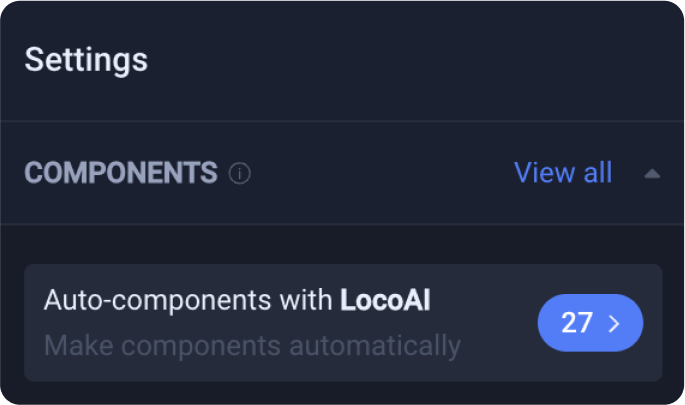
Recommendations Tab
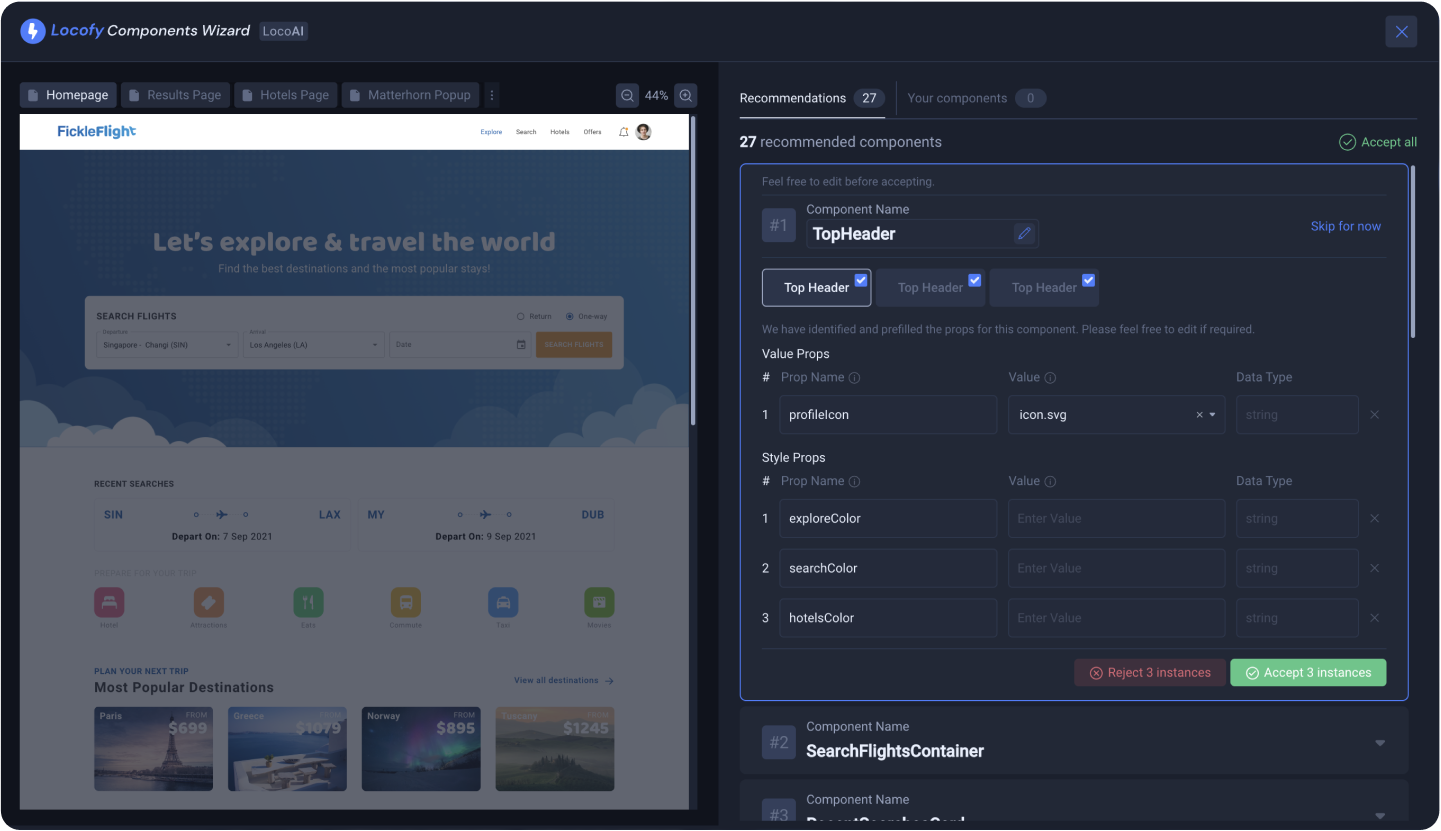
View Recommendations
LocoAI scans your design and makes recommendations for components and props. You can look through each recommendation by clicking to open the accordion.
For each recommendation, you can browse through and view the different instances of the component.
Editing and accepting recommendation
Before accepting a recommendation, you can review the following and make edits to the following properties if required.
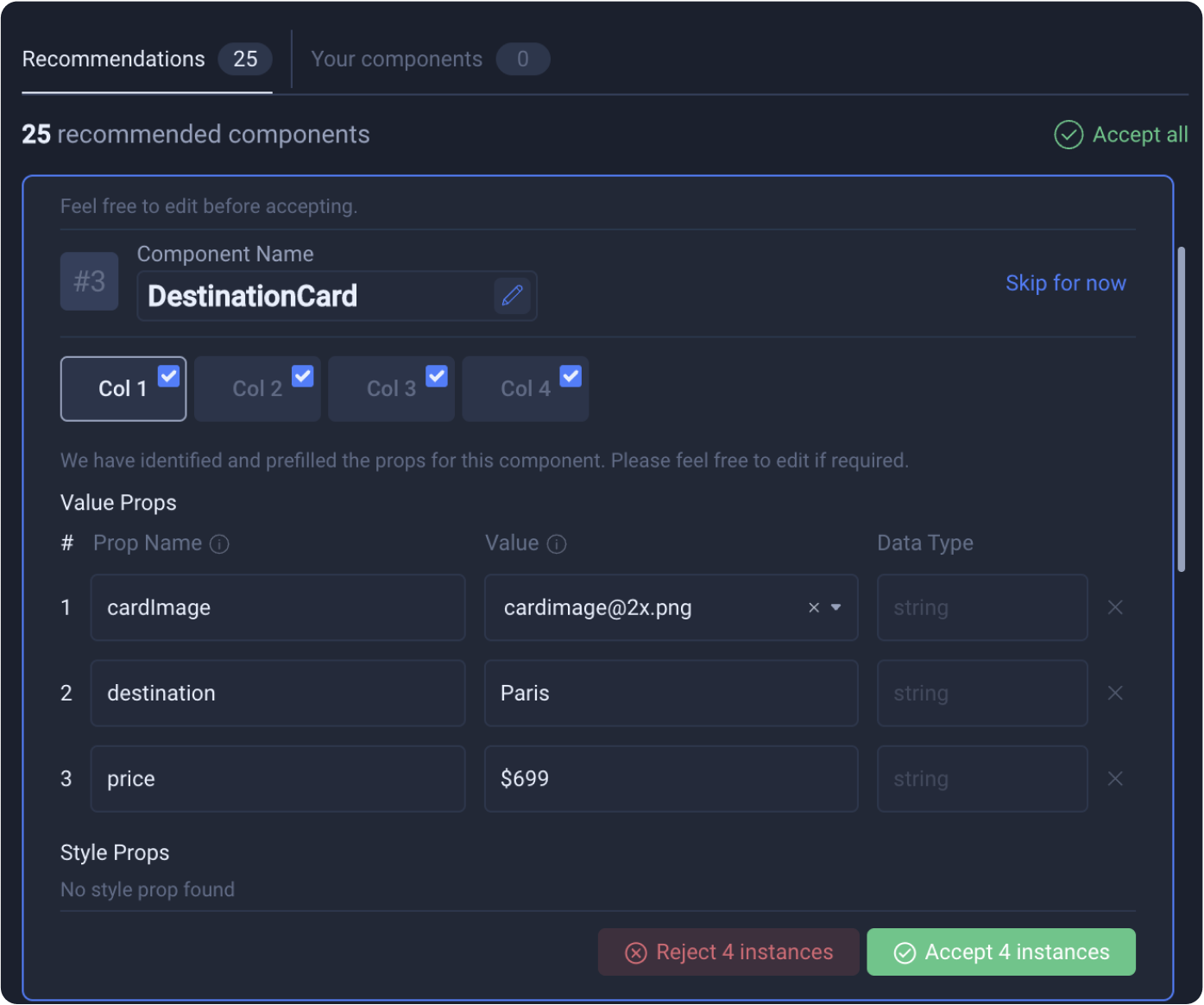
- Component name - LocoAI automatically recommends a meaningful name based on the context in the design.

- Instances - Select or deselect items that should be turned into instances of your component.

- Props - For each prop recommendation, you can edit its name, value, or remove the prop by clicking the cross on the right.
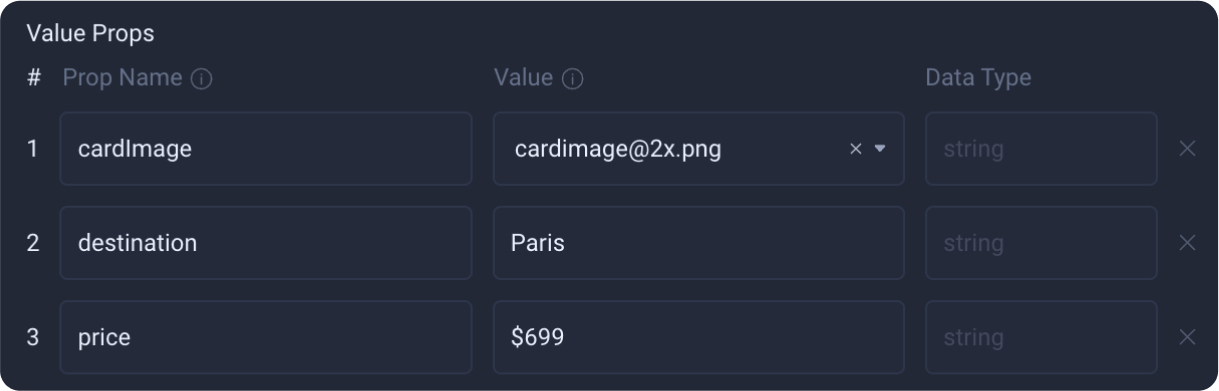
- Once you’ve reviewed the above properties, finalise your decision for the component by clicking Accept or Reject.

You can also accept all recommendations by clicking the “Accept All” option in the top right corner of the Component Wizard screen.
Your Components tab
The ‘Your components’ tab is where you can view all the components you’ve created, including components that were created manually or via a recommendation.
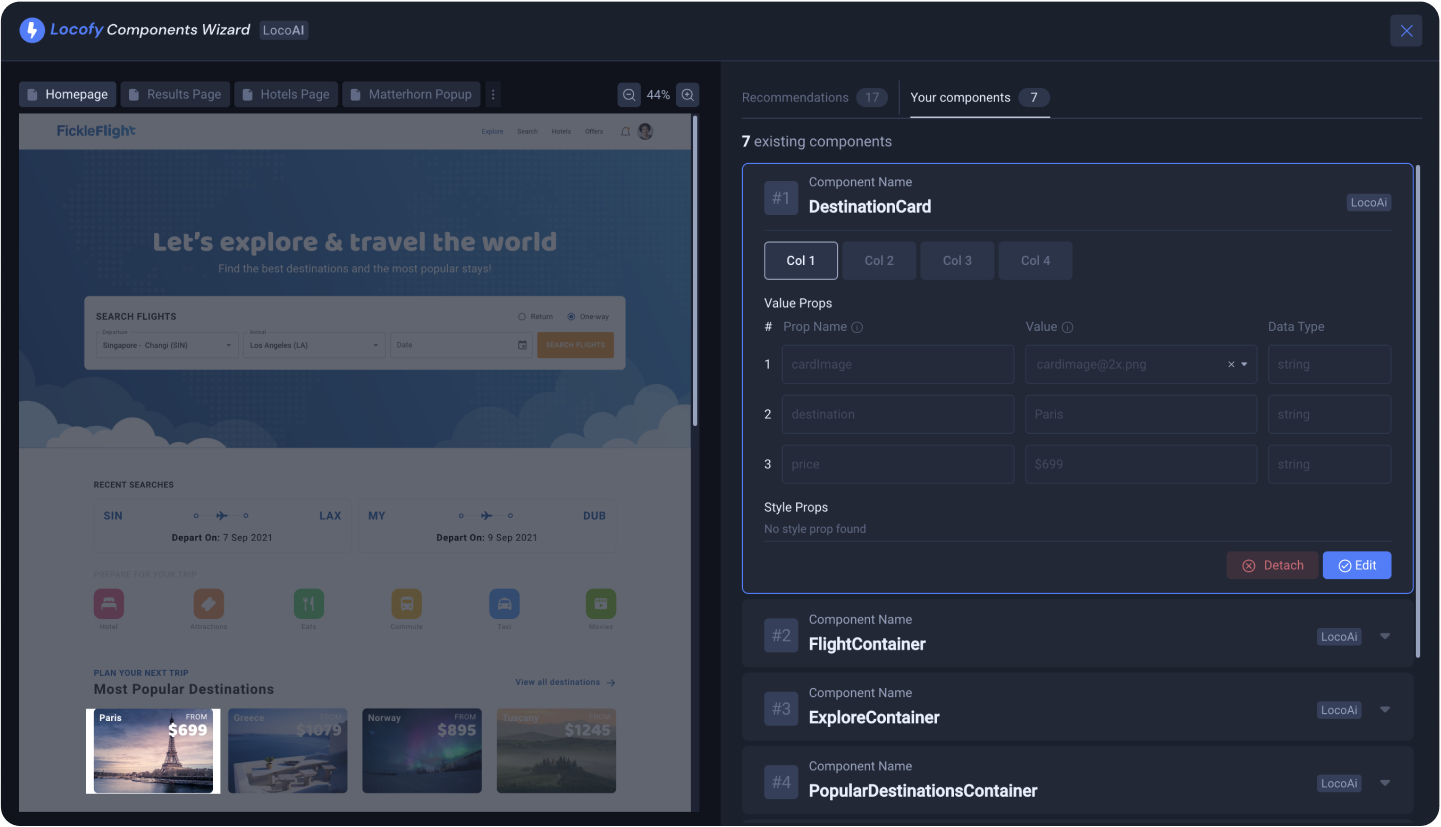
On this tab, you can manage the components in your project.
Detaching a component
If you want to remove a component or simply remove an instance of a component. Click the “Detach” button.
You will then be prompted to make a decision to detach all the instances, or just the selected instance.
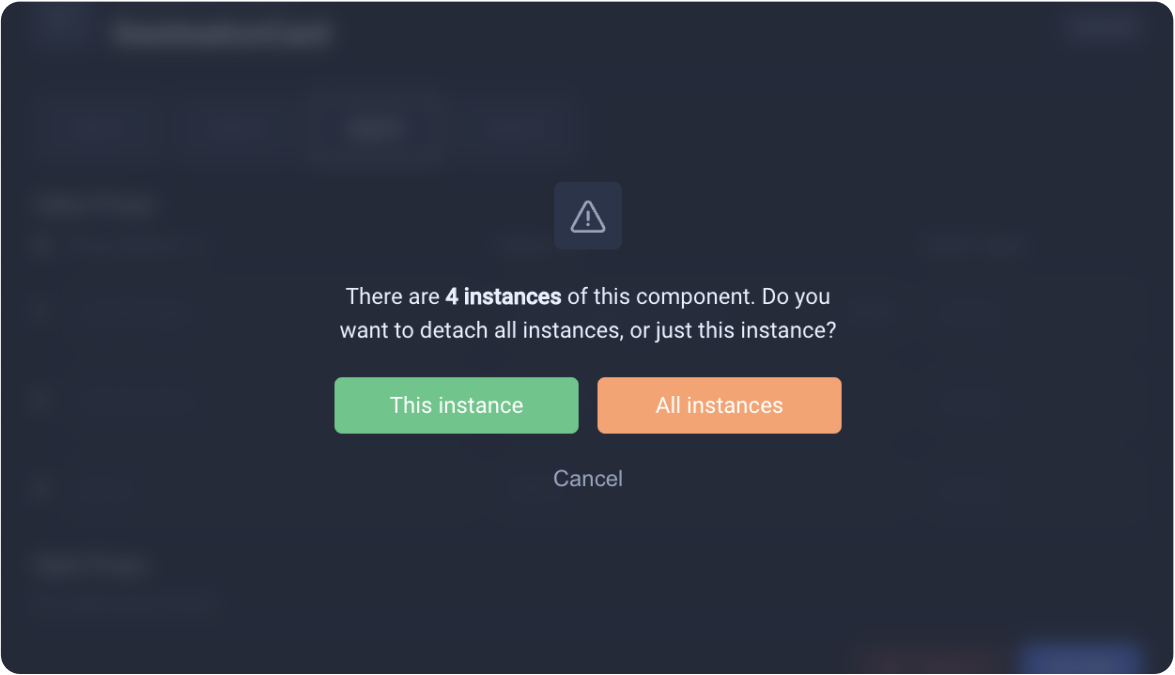
Editing a Components
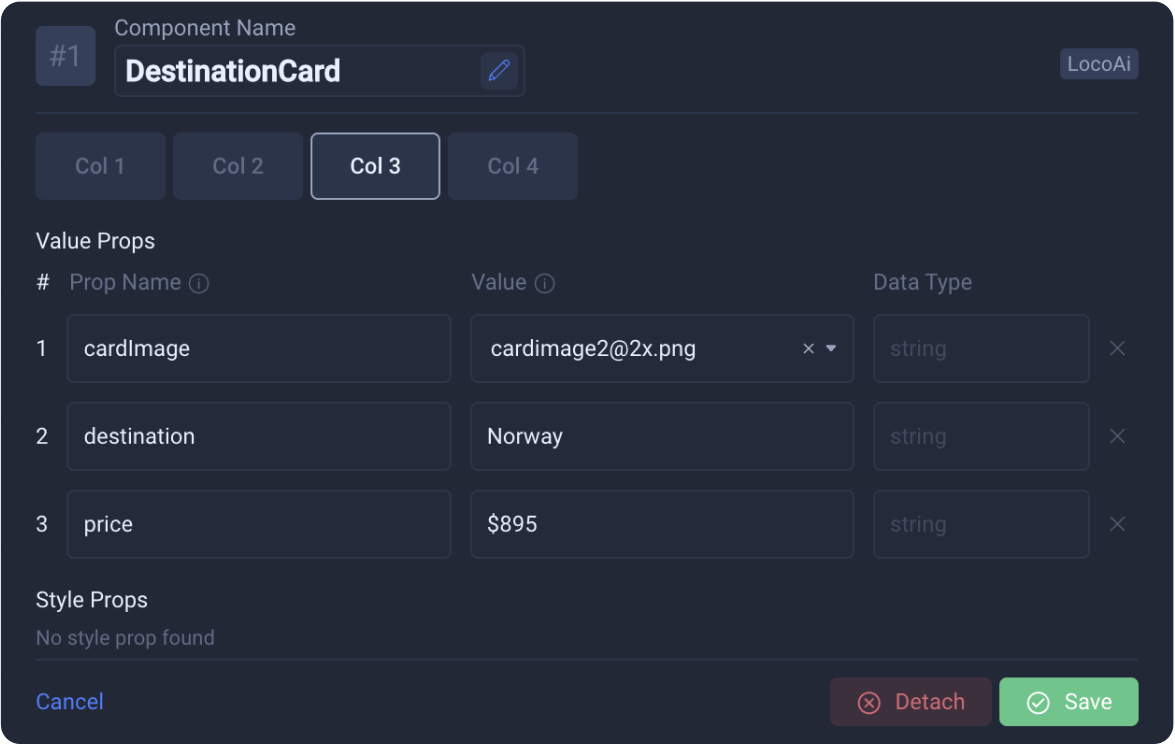
Click the “Edit” button to make modifications to your component. You can then proceed to:
- Edit the Component name
- Edit the Prop names
- Edit the Prop value
- Remove props
Click “Save” to confirm your changes.