Locofy Builder Tour
Get familiar with Locofy Builder and how to work with live, production-ready code.
Accessing Locofy Builder
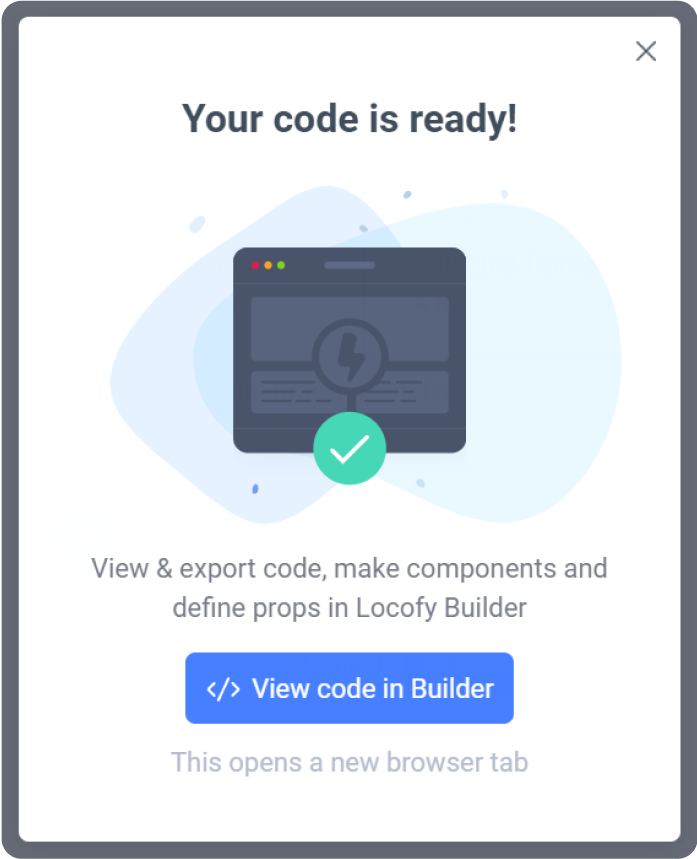
To access Locofy Builder, open your design in Figma and sync your project using the Locofy plugin. Once the sync is complete, click View code in Builder to open your project in Locofy Builder.
NOTE: Locofy Builder requires a monitor or laptop with a screen width of at least 960px. This is necessary to display the left sidebar, preview panel, and right panel simultaneously.
Sections of the Locofy Builder
Locofy Builder consists of the following main sections:
- Top Toolbar – Project management, collaboration, mode switching, and responsive controls
- Preview Screen Panel – Live preview of running code
- Code Viewer Panel – Read-only view of generated code
- Left Side Panel – File explorer, layers, components, GitHub sync
- Right Side Panel (Visual Mode) – Component, configuration, export, and deployment controls
- Agent Mode – Prompt-based UI refinement on live code
Let’s walk through each section in detail.
Top Toolbar
The top toolbar provides access to project management, collaboration, mode switching, and responsive preview controls.

Project manager
Switch between different Locofy projects directly from the toolbar.

Collaborators
Invite and manage team members working on the project. You can assign users as collaborators or owners.

Mode switch: Visual Mode and Agent Mode
The mode switch in the center of the top toolbar lets you toggle between Visual Mode and Agent Mode.
- Visual Mode is the default Builder experience. It uses the right-side panel to manage components, props, configuration, exports, and deployments.
- Agent Mode replaces the Visual Mode panel with a prompt-based interface, allowing you to refine and enhance your UI using natural language.
You can switch between modes at any time. Both modes operate on the same live, running code.
Switch media queries
Preview your application on different screen sizes by switching between media query presets.

Preview Screen Panel
This panel displays your project running on live code. What you see here reflects the actual generated output.
It includes Live Preview, Screens Gallery, Page Navigation, Zoom, and Prototype Mode.
Live preview
- Displays the running UI generated by Locofy.
- Click any element to select it.
- Selecting an element highlights it in the Layers panel and surfaces its available settings in Visual Mode.

Screens Gallery
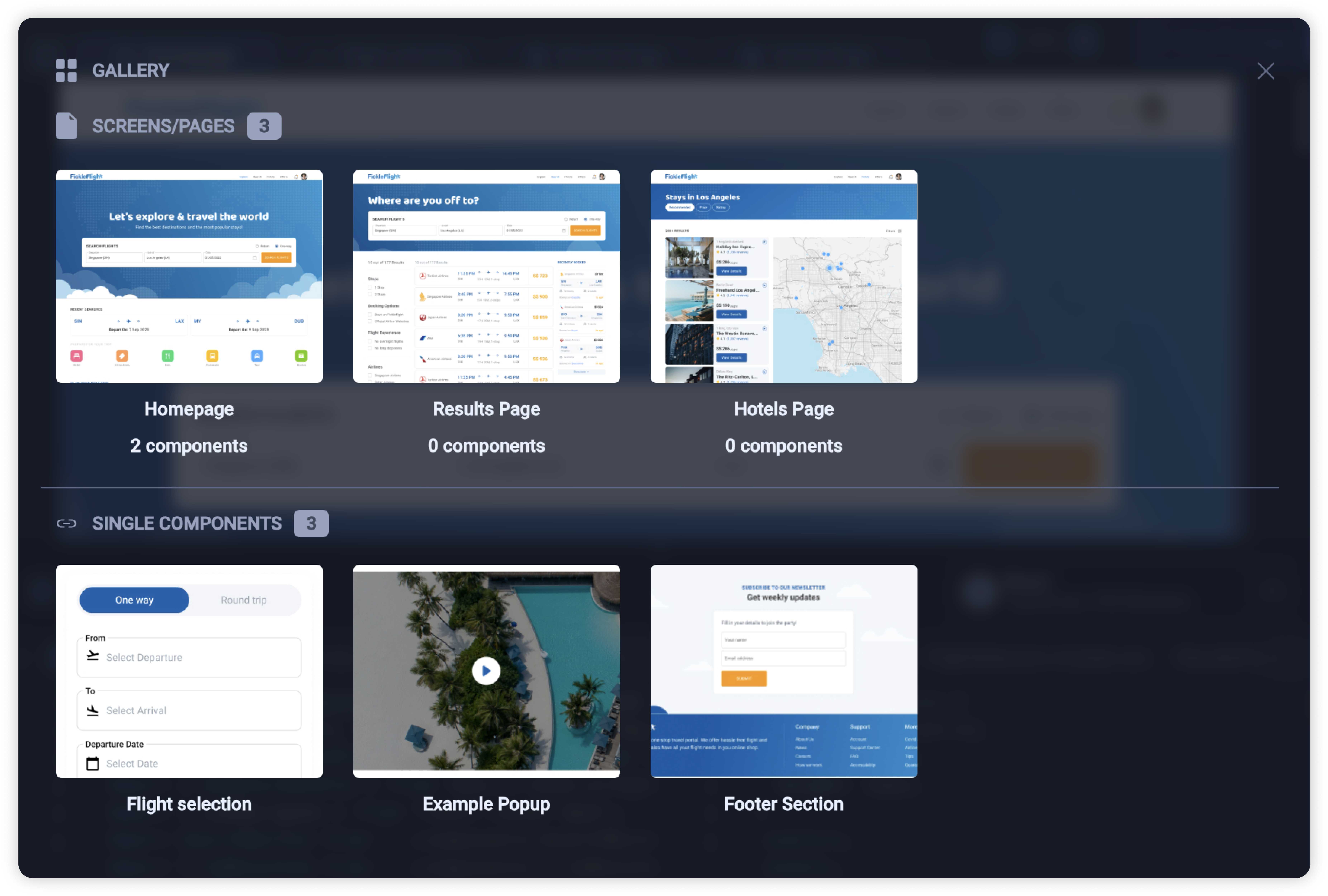
View all screens and standalone components at a glance and switch between them easily.
Page Navigation
Navigate between pages using the dedicated page tabs.

Zoom
Adjust the zoom level of the live preview.

Prototype mode
Preview your project with interactive navigation and actions enabled.
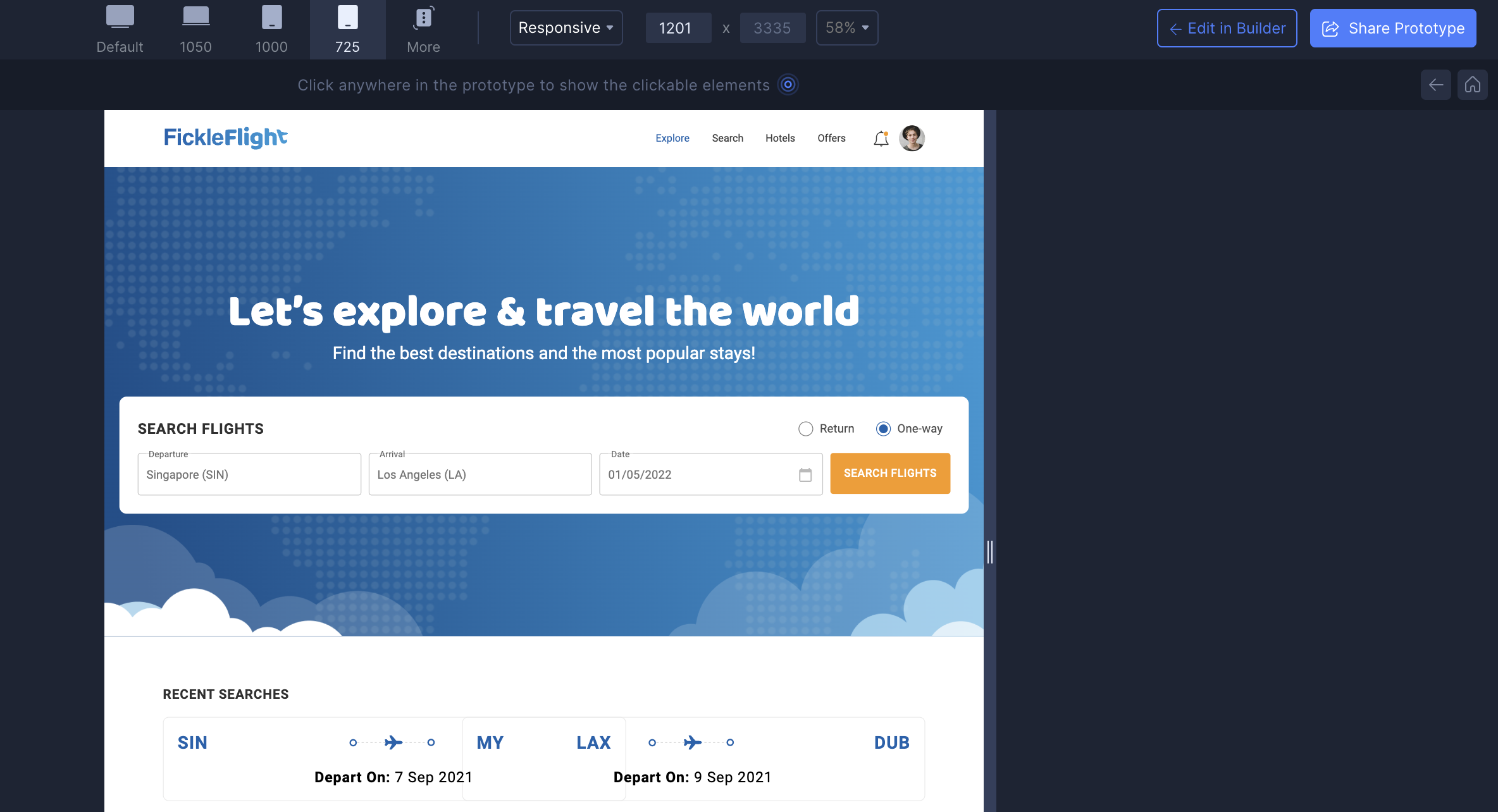
You can also share the live prototype with stakeholders using Share prototype.

Code Viewer Panel
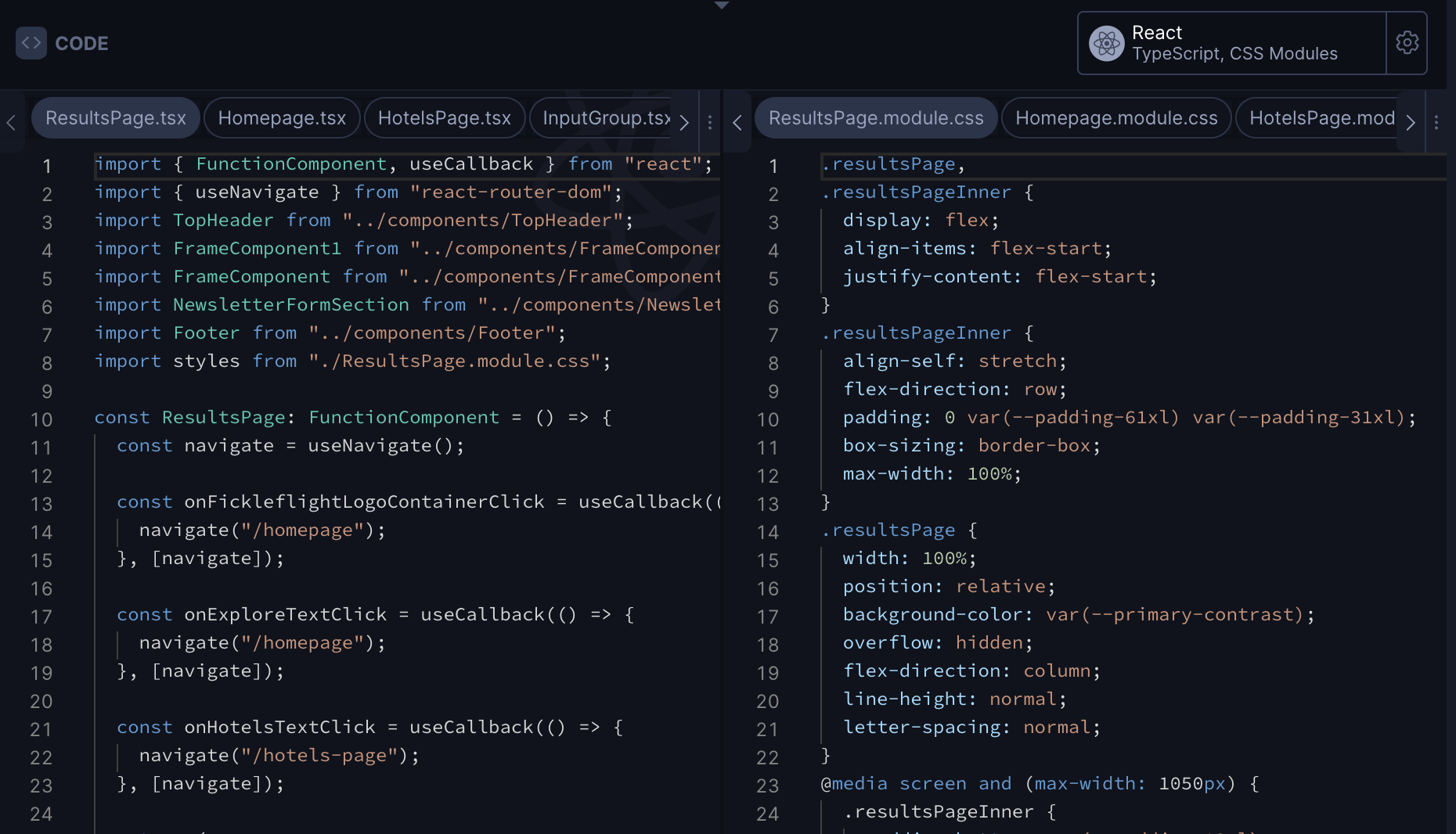
This panel lets you view the generated code and inspect framework-level settings.
Code viewer
- View and navigate between files.
- Copy code snippets easily.
- JavaScript or TypeScript appears on the left, CSS on the right based on your framework.

Framework settings
Update framework-specific settings using the controls in the top-right of the Code Viewer.

Left Side Panel
The left panel contains tools for project structure, layers, components, and GitHub sync.
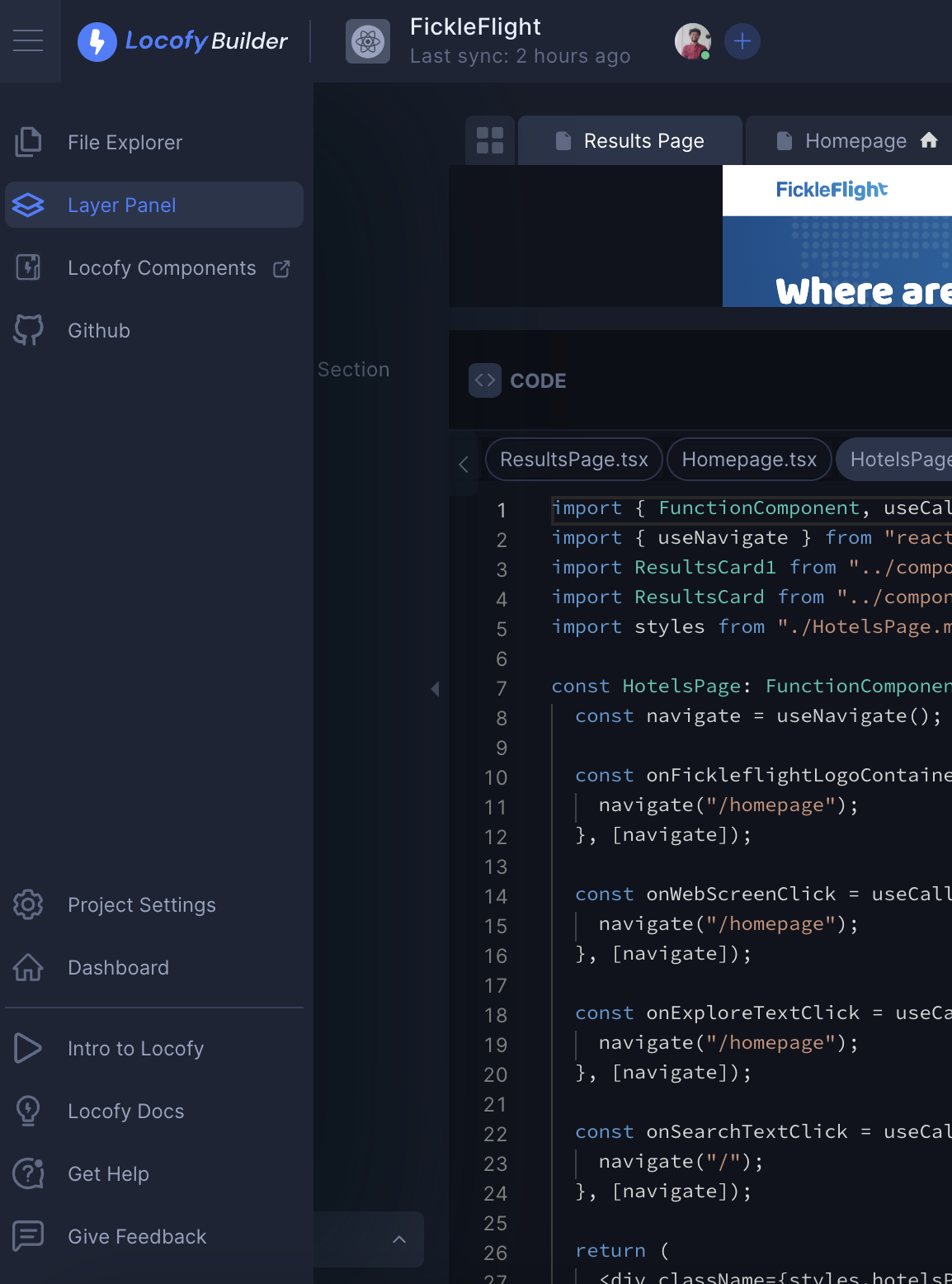
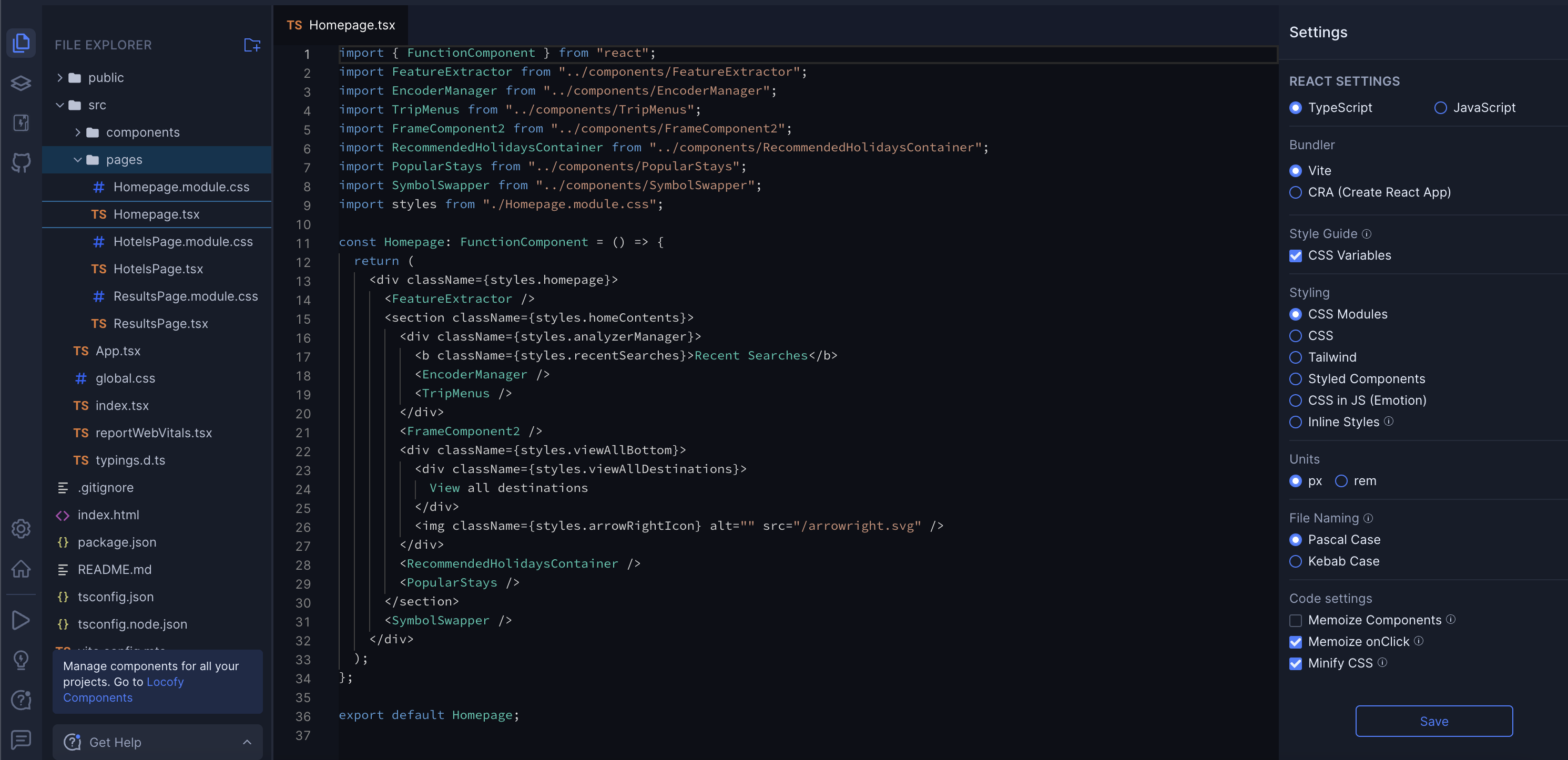
File explorer
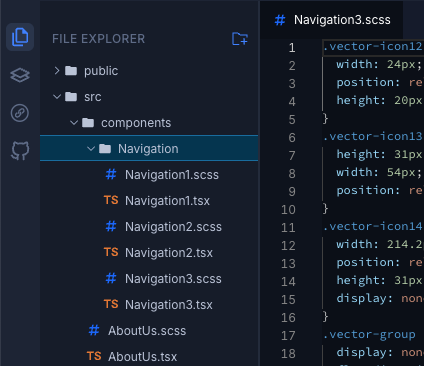
A read-only view of your codebase that allows you to rename files and manage folder structure.
You can create folders, move files, and Locofy will automatically update imports.
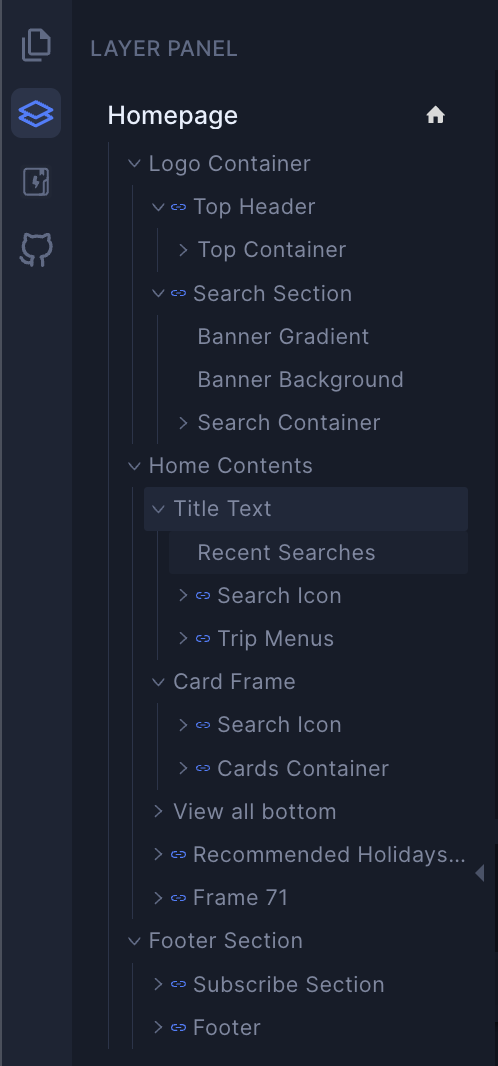
Layer panel
- Displays the layer structure from your original design.
- Selecting a layer highlights it in the live preview.
- Components are marked with a clip icon.

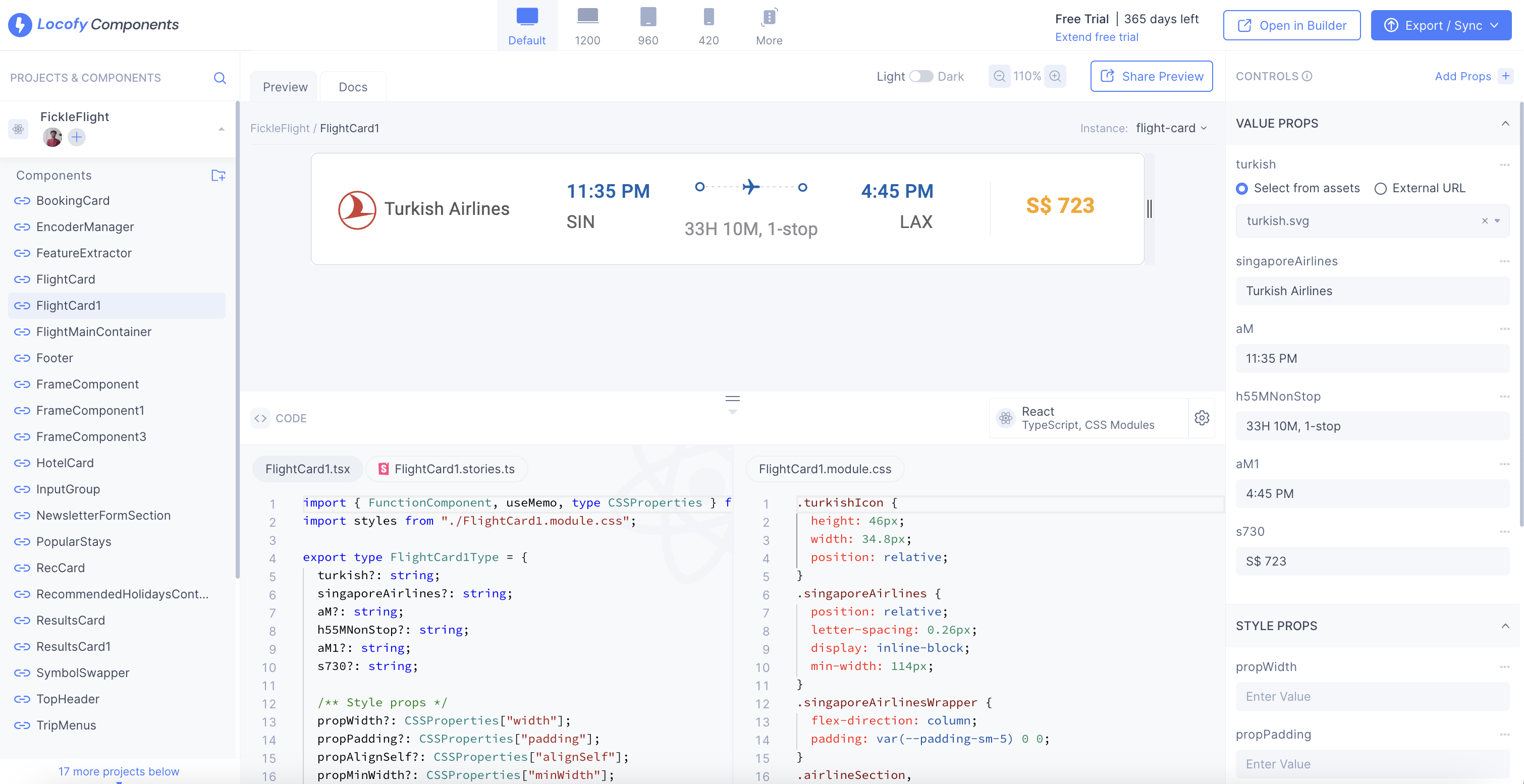
Locofy components
Manage all components and props from a centralized interface.
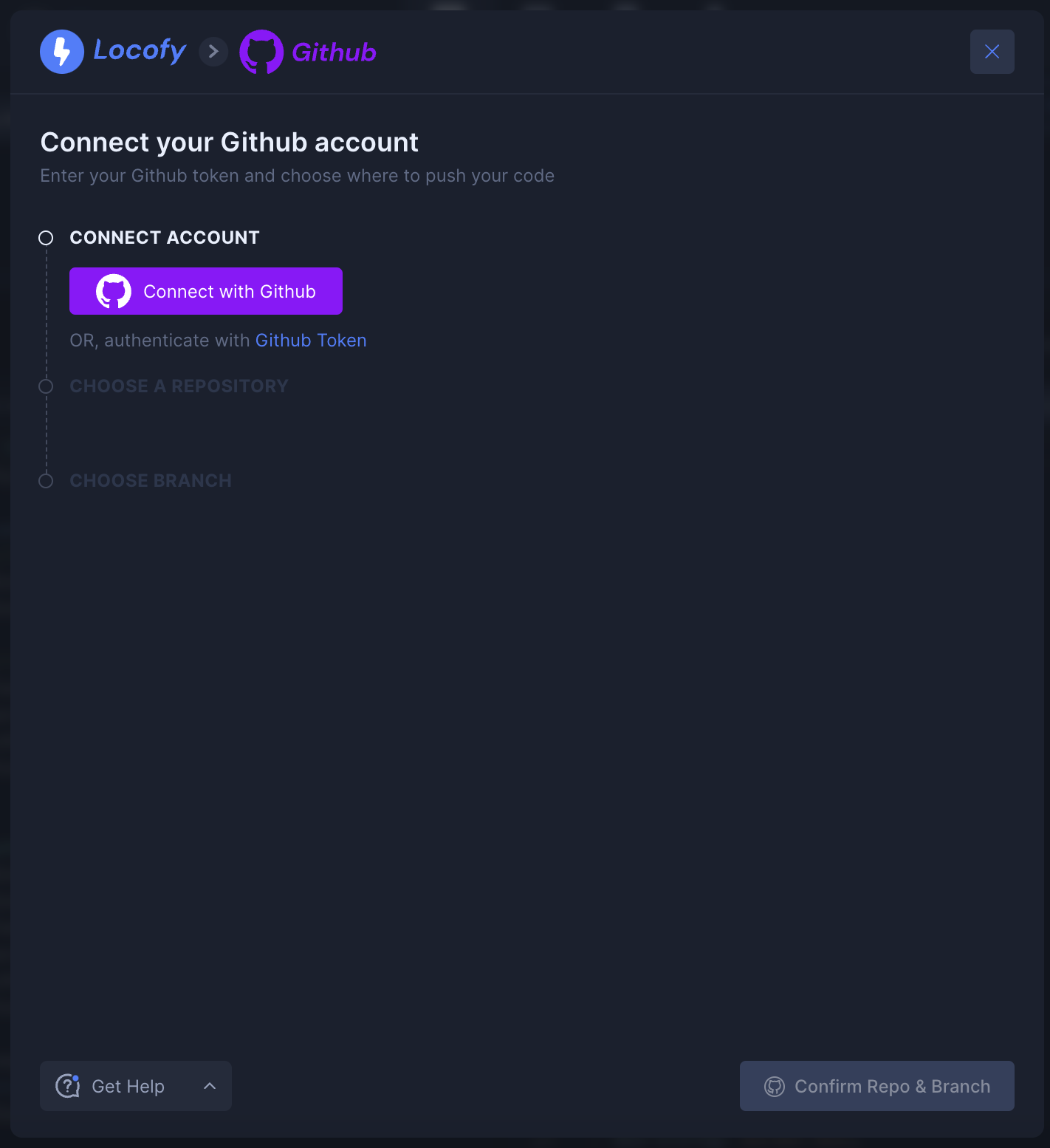
GitHub sync
Push your project to GitHub by connecting your account and choosing a new or existing repository.
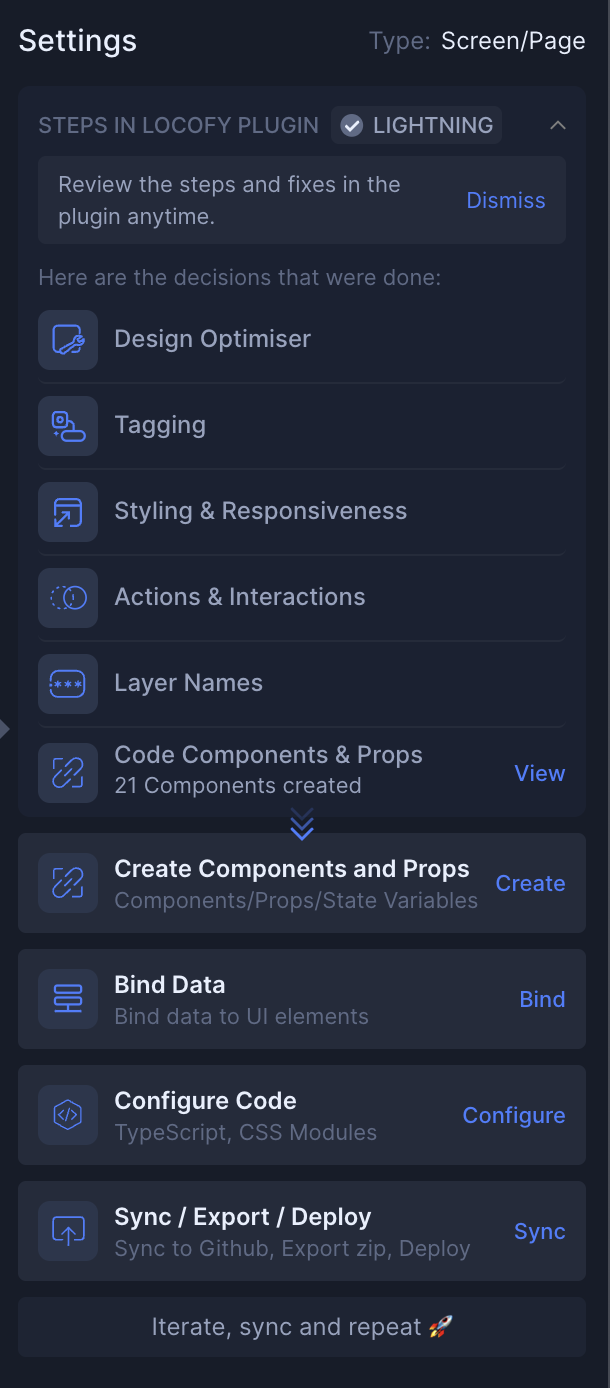
Right Side Panel (Visual Mode)
This panel is active when Visual Mode is enabled. It provides structured controls for managing your project.
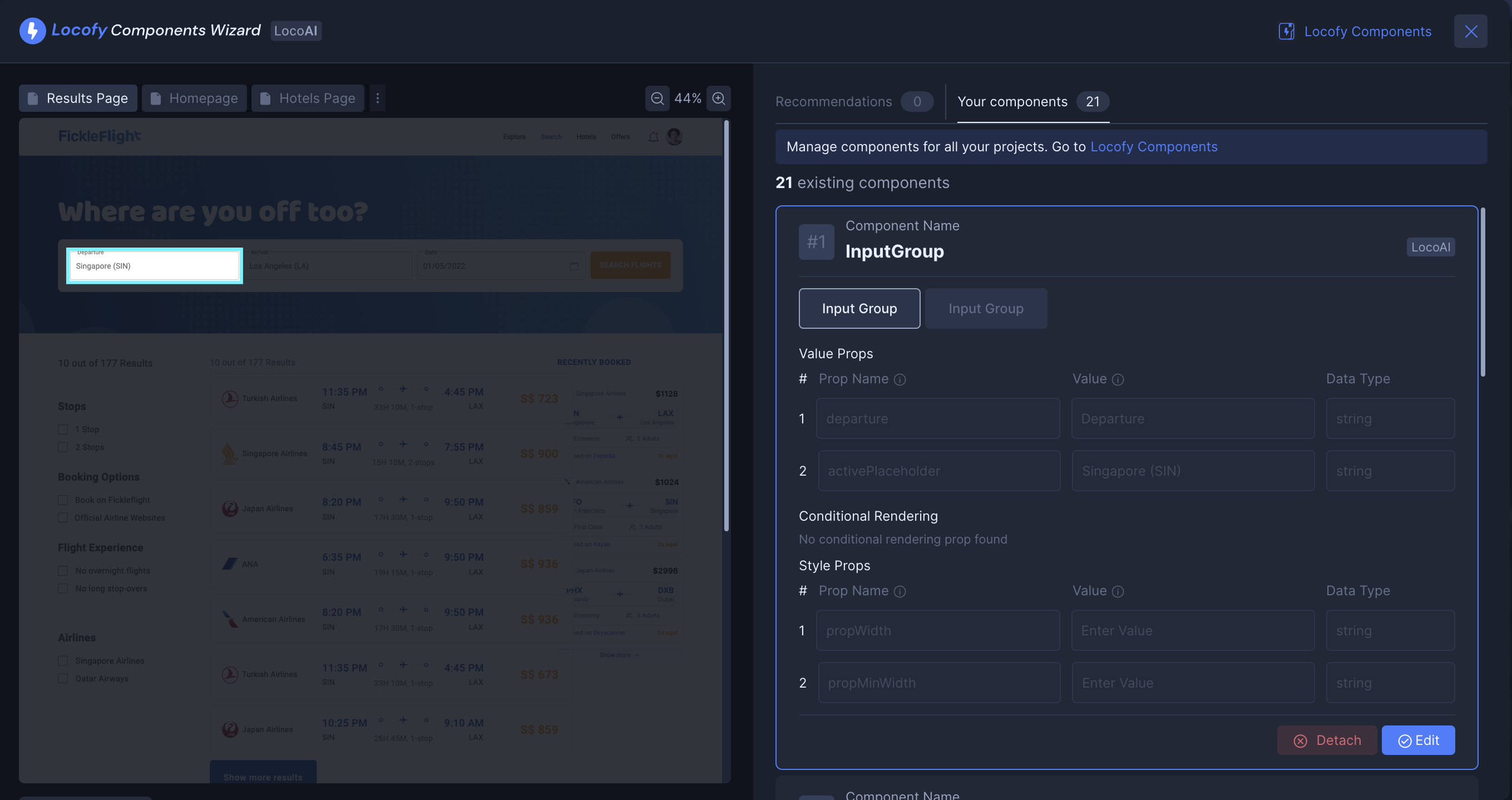
Components and props
Edit component instances, props, names, and detach components when needed.
Includes LocoAI-powered recommendations for improving component structure.
Create components, props, and state
Convert elements into reusable components, add props, and define state variables.

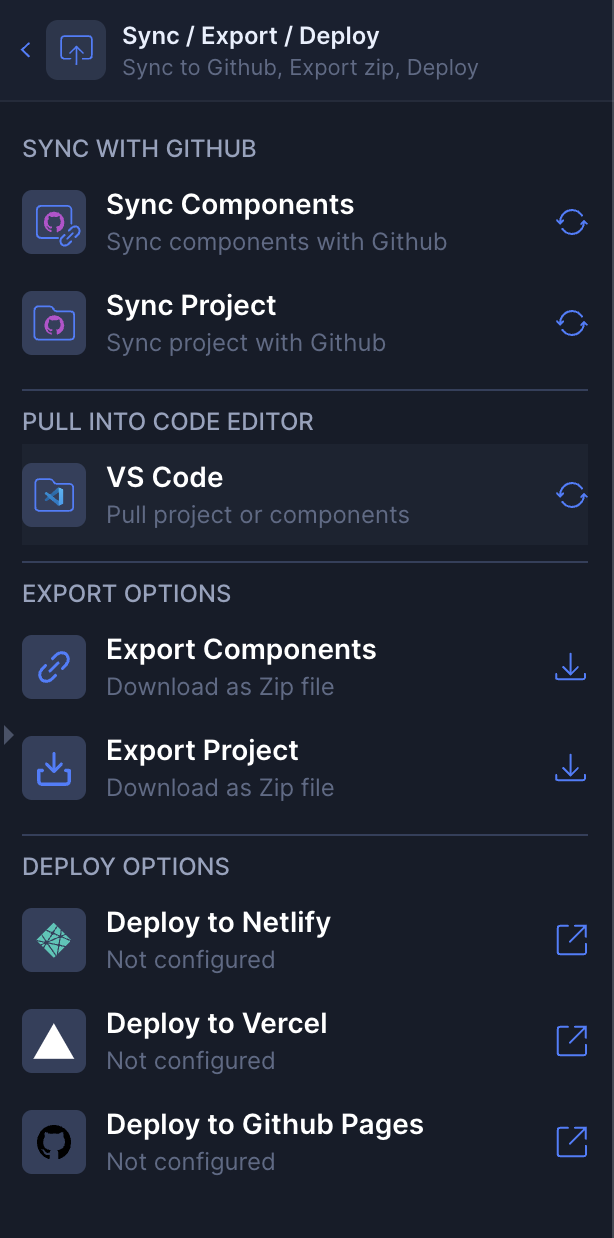
Configure, sync, export, and deploy
From Visual Mode, you can:
- Sync to GitHub
- Pull code into VS Code
- Export projects or components
- Deploy to Netlify, Vercel, or GitHub Pages
Agent Mode
Agent Mode allows you to refine and enhance your UI using natural language prompts.
You can enter Agent Mode using the mode switch in the top toolbar. When enabled, Agent Mode replaces the Visual Mode panel.
In Agent Mode, you can:
- Improve accessibility
- Add theming such as light and dark mode
- Enhance responsiveness
- Add internationalisation
- Make UI refinements without manual code edits
You can switch back to Visual Mode at any time to continue using structured controls.
You can read more about Agent Mode here (opens in a new tab).
Collaborate Seamlessly with "View Only My Work" Feature
Locofy allows multiple team members to work on different sections of the same design file, seamlessly merging everything back together. This feature enhances team collaboration by providing clear separation of individual and team workspaces, making collaboration smooth and effective.
Using the "View Work" Dropdown
-
Locate the dropdown labeled "View:" near the collaborators at the top of the Builder.
-
Click on "Whole Project" to reveal the options.
-
Select the desired option:
- Whole Project (all collaborators): View all screens and components built and synced by the whole team.
- Only My Work (current session): View only what you have synced in the current session.
- Only My Work (all sessions): View only your work from all sessions.
-
Enable the appropriate view to filter the components accordingly, helping you focus on the components you are responsible for.

How to Sync Only My Work to GitHub
- In the Builder, navigate to the "Sync to GitHub" option and review the components listed for syncing.
- Ensure that the "Only My Work" option is enabled in the GitHub sync modal. This ensures that only your components will be pushed to GitHub, preventing any accidental overwriting of your teammates' work.
- Proceed to push your components to GitHub. With "Only My Work" enabled, only the files associated with your components will be pushed.

Collaborative Work in Locofy: A Real-World Example
Let’s explore how User A and User B can collaborate effectively on the same Figma design file.
Scenario: Collaborating on Header and Footer of the same Figma design file
Let's say User A is working on the header and User B is working on the footer of a website design. Here’s how they can collaborate using Locofy.
Working on Different Components
- User A focuses on the header:
- In Figma: User A opens the shared design file and selects the header section.
- Convert to Code: Using the Locofy plugin, User A converts the header into code by selecting the header element and clicking on the "Convert to Code" option.
- User B focuses on the footer:
- In Figma: User B, logged into the same design file, selects the footer section.
- Convert to Code: Similarly, User B uses the Locofy plugin to convert the footer into code by selecting the footer element and clicking on "Convert to Code".
Syncing the code to Locofy Builder
Once both users have converted their respective components into code, they need to sync them to the Locofy Builder.
- User A syncs the header:
- Sync: In the Locofy plugin, User A clicks on the "Sync" button to upload the header component to the Locofy Builder.
- User B syncs the footer:
- Sync: User B also clicks on the "Sync" button to upload the footer component to the Locofy Builder.

Viewing Work in Locofy Builder
After syncing, both users open the Locofy Builder to review their components.
- Open Locofy Builder:
- User A sees the header component they worked on.
- User B sees the footer component they worked on.

- Change View:
- Only My Work: Initially, each user sees only their own work. User A sees the header, and User B sees the footer.
- Whole Project: To view all components, both users can switch the view from "Only My Work" to "Whole Project" using the dropdown menu at the top of the Locofy Builder. This allows them to see both the header and footer components, reflecting the combined efforts.

Final Steps
- Verify Merge: Both users can now ensure that the header and footer components are correctly merged and functioning as intended in the Locofy Builder using the Smart Merge Conflict feature of Locofy Builder.
- Efficient Collaboration: This clear separation of individual and team workspaces allows the team to collaborate efficiently, especially beneficial for larger teams.
With Locofy’s collaborative features, team members can easily work on different sections of a design file simultaneously and seamlessly integrate their work, making the process smoother and more productive. See the video (opens in a new tab) here.